 AgendaFuse
Support
Connect your calendars and reminders, get AgendaFuse on your watch, or troubleshoot a schedule that’s out of date.
Connect Apple Calendar
- In AgendaFuse, open Settings → Calendars & Sources → Manage Calendars.
- Grant Full Access when iOS asks. This allows AgendaFuse to read the calendars you choose.
- Select the calendars you want in AgendaFuse. If one is missing, check that it already appears in Apple Calendar.
If you declined access earlier, review AgendaFuse’s permissions in iPhone Settings, then return to Manage Calendars and check your selections.
Connect Apple Reminders
- Open My Tasks and choose Reminders Lists or Connect Apple Reminders.
- Tap Connect Reminders, then grant access in the iOS prompt.
- Select the lists you want to see. Apple Reminders continues to manage their sharing, assignments, recurrence, and native alerts.
If the lists stay empty, confirm that they appear in Apple Reminders and that AgendaFuse has Reminders permission in iPhone Settings.
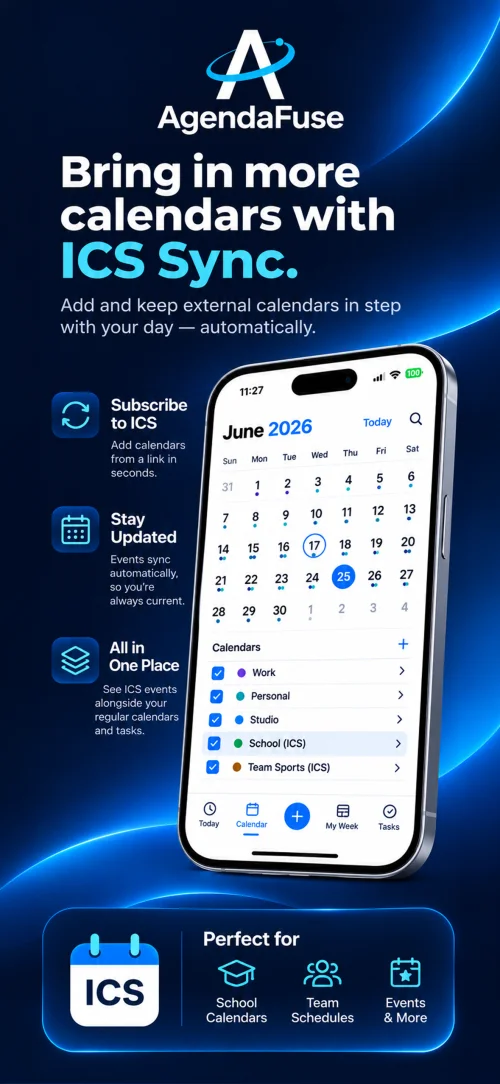
Subscribe to an ICS calendar
- Copy a calendar subscription link from the provider. Use a reachable HTTPS or
webcalfeed that can load without a sign-in prompt. - Open Settings → Calendars & Sources → Subscribe to Calendar.
- Paste the link, choose a name or color if you’d like, and add the feed. Manage it later under External Calendars.
Use Import Calendar File for a one-time ICS snapshot. A subscription keeps its last saved events available offline and checks the provider for changes when refreshed. Both sources are read-only. See the ICS screenshot.
Install the Apple Watch companion
- Install AgendaFuse on your paired iPhone. Open the iPhone Watch app and select My Watch.
- Under Available Apps, tap Install next to AgendaFuse if it hasn’t installed automatically.
- Open AgendaFuse on both devices. To add the Full Status Ring, choose a compatible face such as Modular, edit its large complication, and select AgendaFuse.
Troubleshooting
Why isn’t an event driving the countdown?
Check the event’s calendar and its countdown participation. A calendar can appear in your schedule even if it’s excluded from countdowns. Personal task due times are deadlines and do not occupy a schedule block.
Why is my subscription out of date?
Check that the iPhone is online and refresh the subscription under External Calendars. If it fails, confirm the provider still offers the feed at that URL. Keep any private link or query token out of screenshots and bug reports.
Why am I getting duplicate alerts?
Apple Calendar or Reminders can send their own alerts. Review the event’s alerts and AgendaFuse → Settings → Notifications & Alerts. For missing alerts, also check iPhone notification permissions and Focus settings.
Why hasn’t my Watch updated?
Check that the devices are still paired and connected, then open AgendaFuse on both. Compare the Watch companion with Today on the phone. watchOS controls when complications refresh.
Contact & bug reports
Email support@agendafuse.app for help, feedback, or to report a bug.
If you installed AgendaFuse through TestFlight, open TestFlight → AgendaFuse → Send Beta Feedback. Apple’s TestFlight feedback instructions
For other beta questions, TestFlight can show the developer contact under AgendaFuse → Information → App Details.
When reporting a bug, include the app version, device and OS version, what you expected, what happened, and the steps to reproduce it.
App version:
Device and OS:
Steps to reproduce:
Expected result:
Actual result:
Remove personal calendar details, reminder contents, and private subscription links before sharing screenshots or logs.